Setup guide · about 2 minutes each
Log spending the moment it happens.
Apple Shortcuts automations can send Apple Pay payments and bank SMS alerts straight to BudgetGo, so transactions land in your records without typing a thing. Everything runs on your iPhone.
- You pay or get a bank textApple Pay tap or SMS alert
- Shortcuts runs instantlyYour personal automation
-
 BudgetGo logs itAmount, merchant, and category
Before you start
Three quick checks.
- BudgetGo is installedDownload it from the App Store and sign in once so its actions appear in Shortcuts.
- Shortcuts is on your iPhoneApple's Shortcuts app comes preinstalled on iOS 17 and later.
- Imports are onIn BudgetGo, open Data Hub and turn on Wallet or SMS imports. When they're off, BudgetGo ignores anything the automation sends.
Apple Wallet
Log Apple Pay payments automatically.
This automation runs every time you tap a Wallet card to pay, then sends the amount and merchant to BudgetGo's Add Transaction to Budget Go action.
-
1
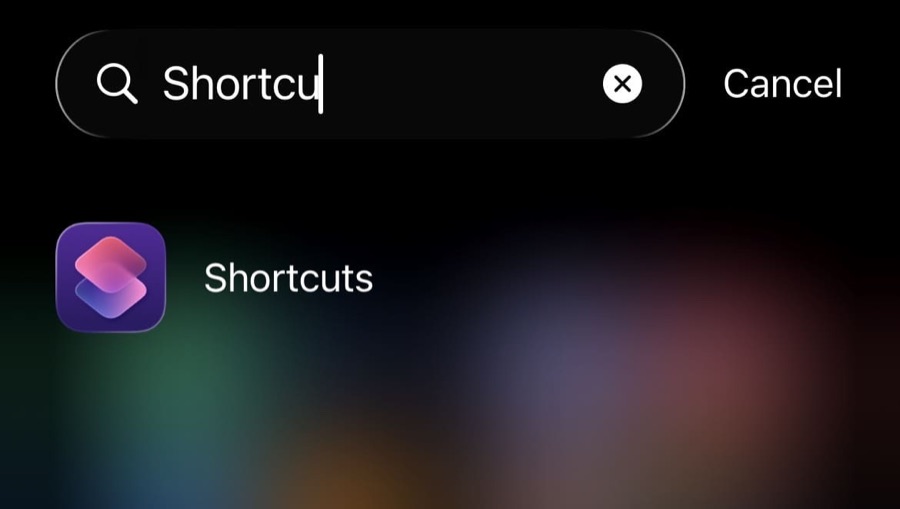
Open Shortcuts
Find and open the Shortcuts app on your iPhone.
-
2
Create a personal automation
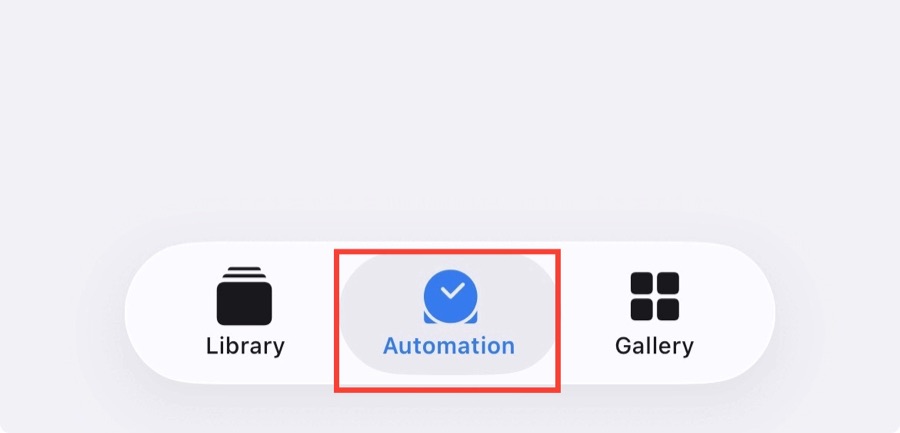
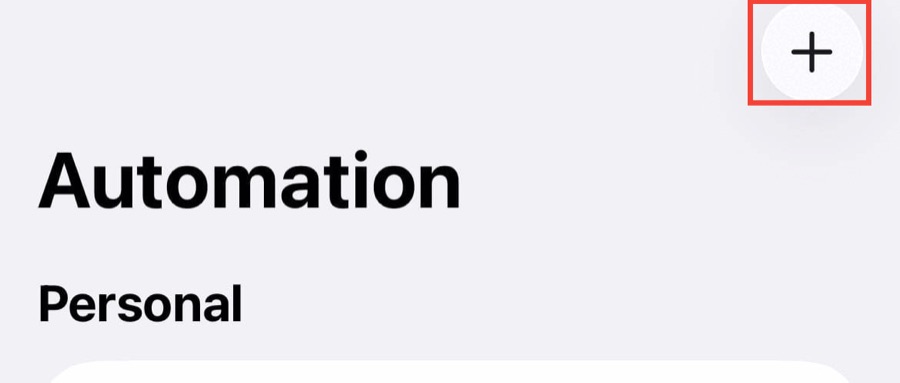
Open the Automation tab, then tap + to create a new personal automation.
-
3
Choose the Wallet trigger
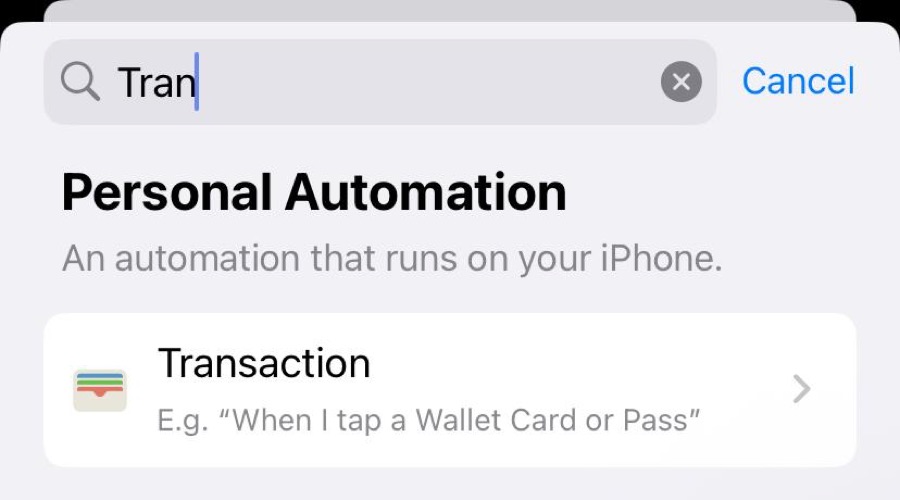
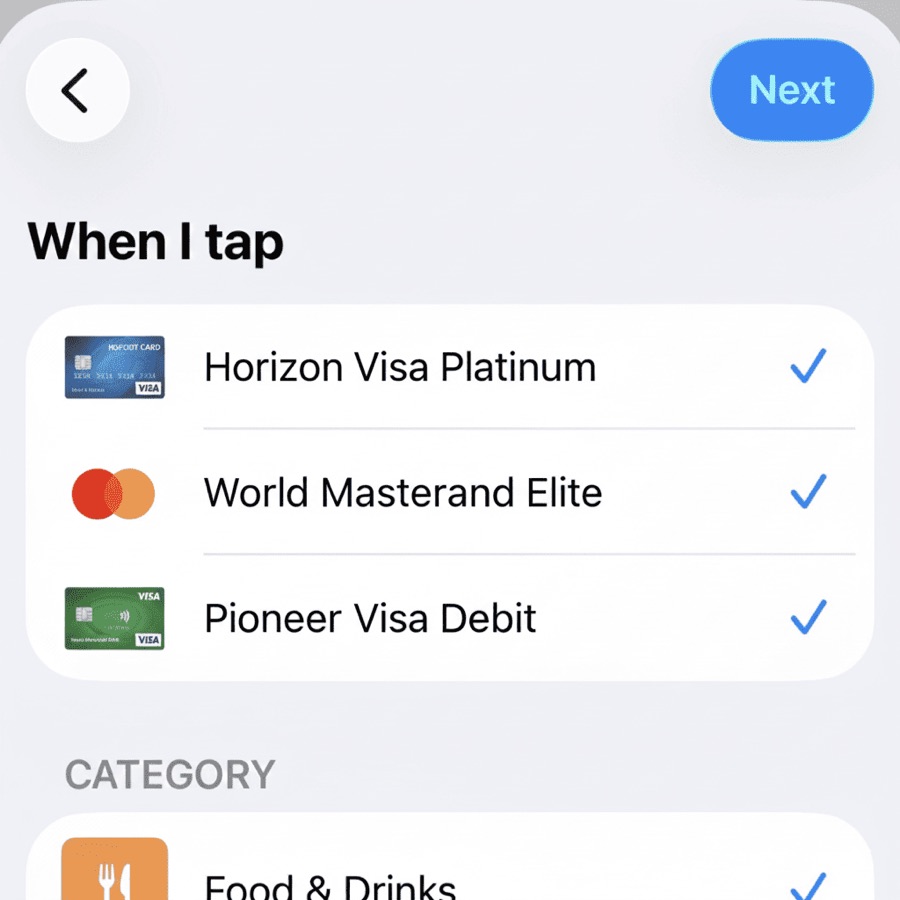
- Search for Transaction (shown as Wallet on some iOS versions) and select it.
- Select every card you want BudgetGo to track.
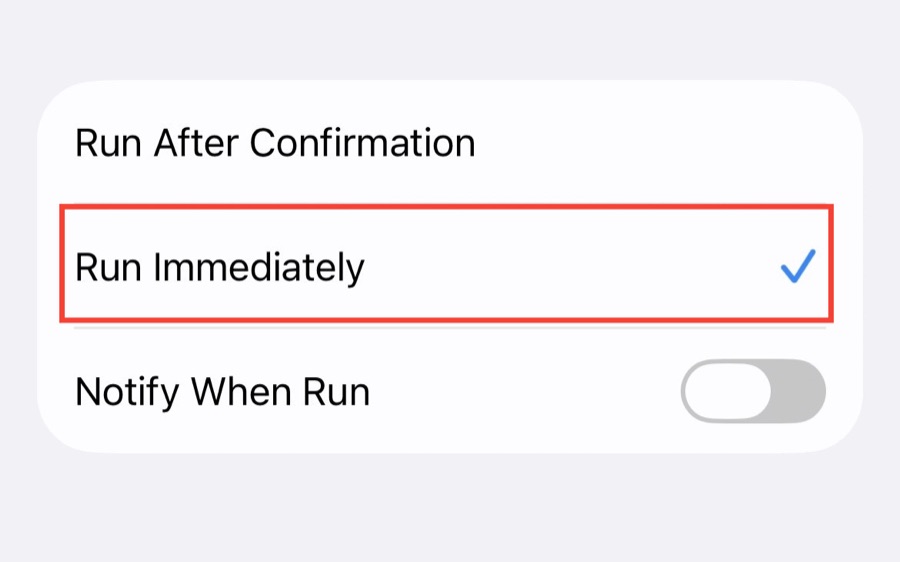
- Choose Run Immediately so the automation never waits for confirmation, then tap Next.
-
4
Add the BudgetGo action
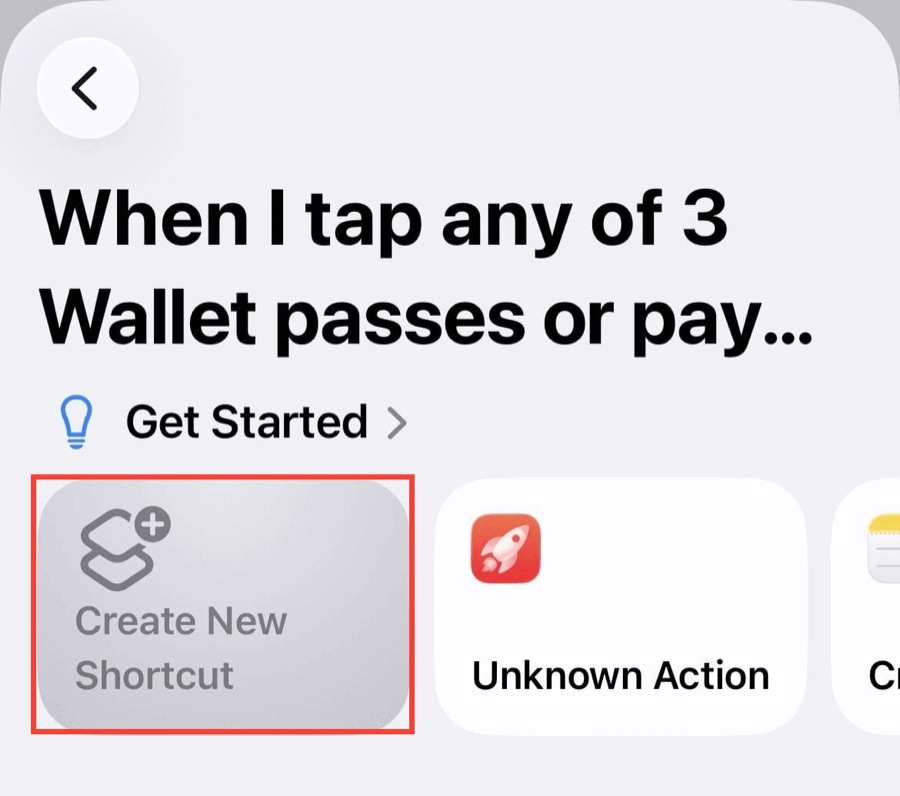
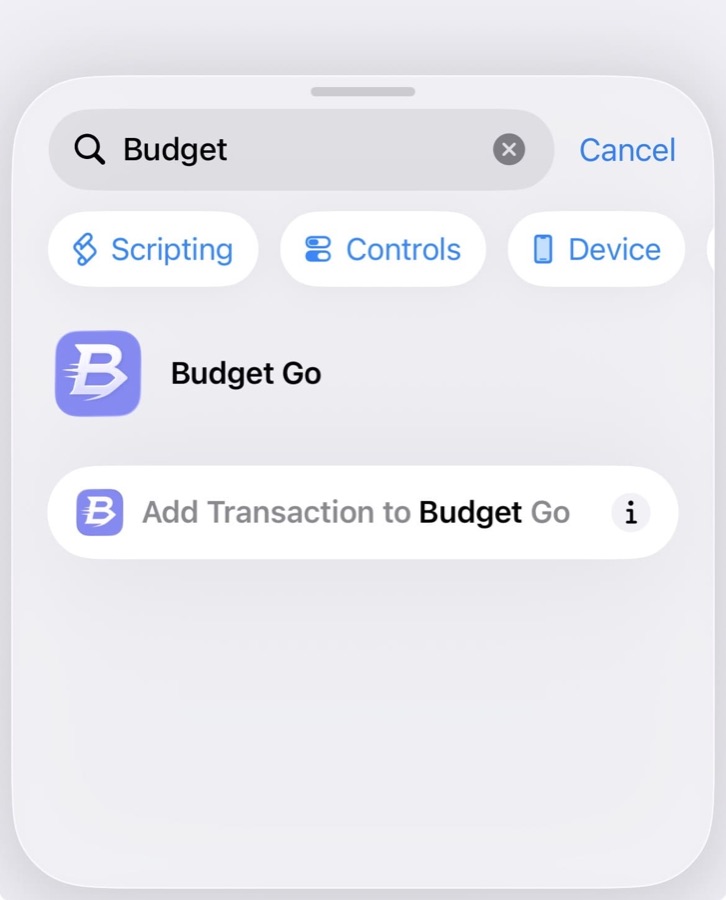
Tap New Blank Automation, search for BudgetGo, and choose Add Transaction to Budget Go.
-
5
Connect the payment details
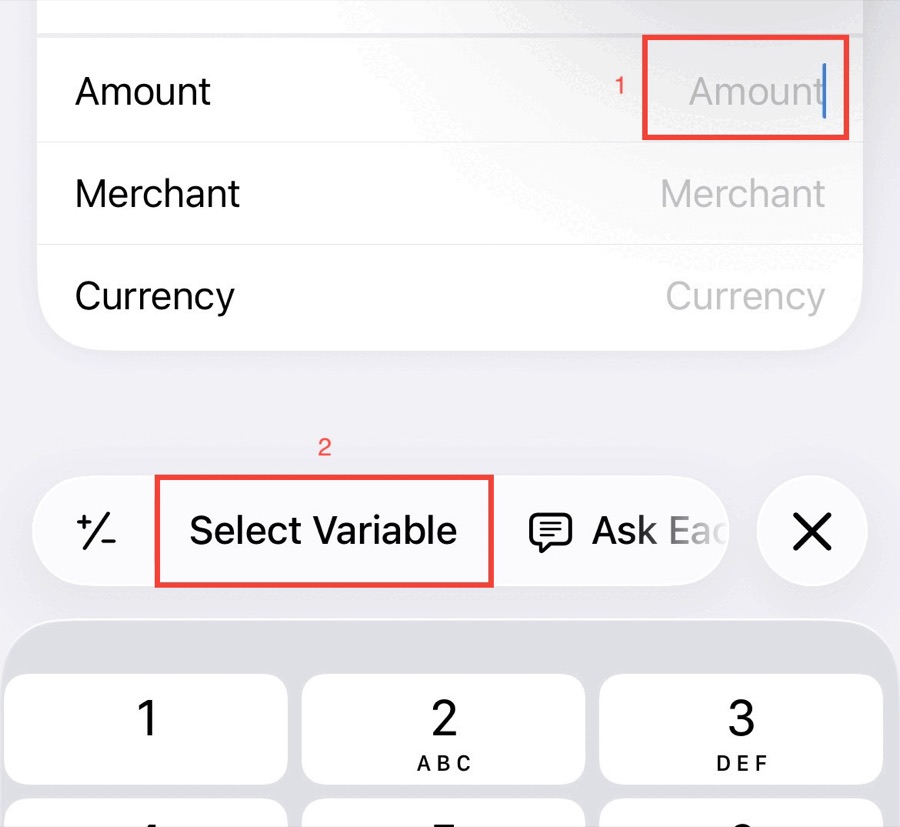
- Tap the Amount field, choose Select Variable, then pick Shortcut Input.
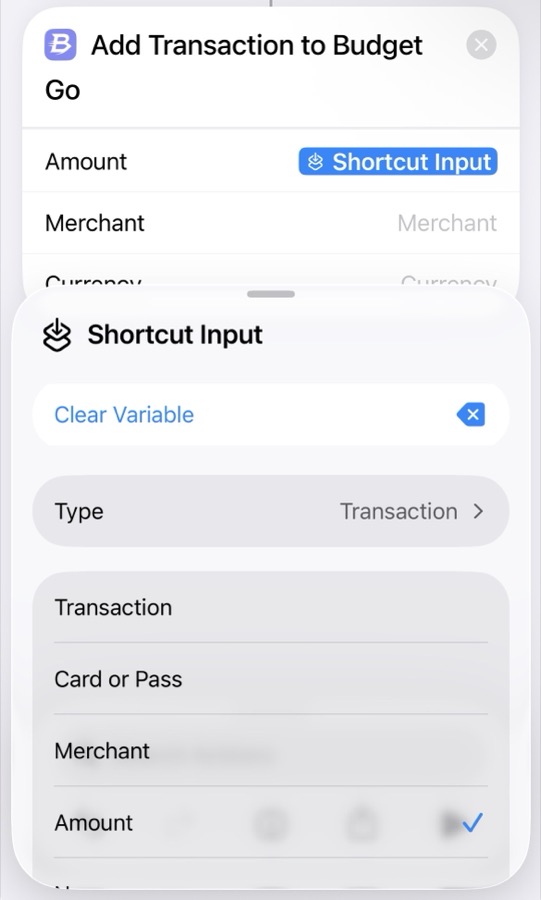
- Tap the inserted Shortcut Input and change it to Amount.
- Repeat for Merchant, choosing Merchant from Shortcut Input.
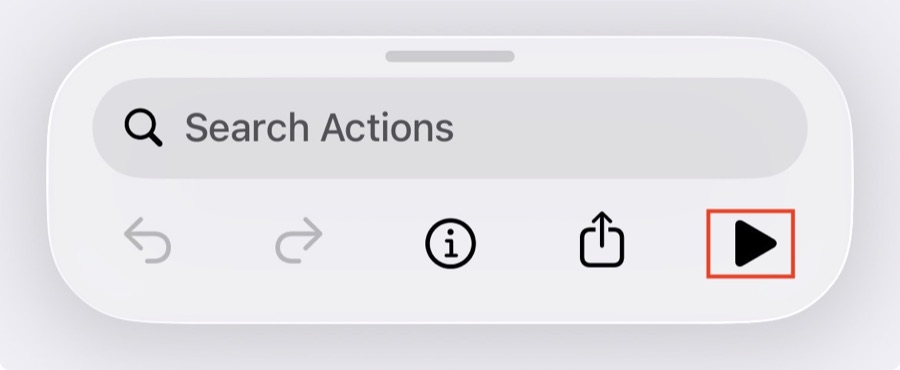
- Tap the play button to test it, then tap Done.
Currency is optional. Leave it empty to use your BudgetGo default currency, or enter a code such as USD, EUR, or NGN.
-
6
Check it in BudgetGo
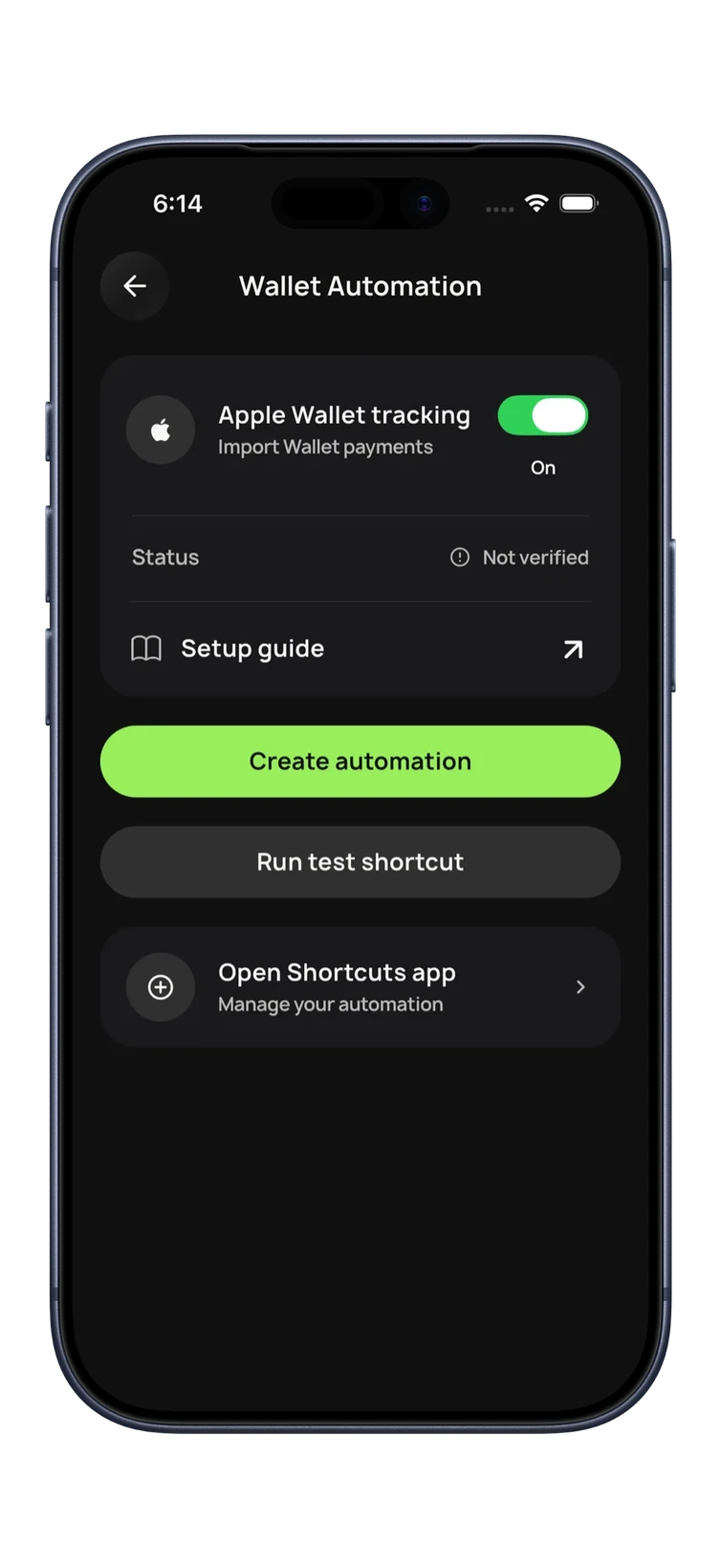
In BudgetGo, open Data Hub and tap Wallet Automation. Make sure Apple Wallet tracking is on, then tap Run test shortcut. The status changes to verified once BudgetGo receives a payment from your automation.
Messages
Turn bank SMS alerts into transactions.
If your bank texts you about card payments and transfers, a Message automation can pass each alert to BudgetGo's Import SMS Transaction action. BudgetGo reads the message on your device and creates a transaction only when it recognizes a financial alert.
-
1
Create a Message automation
In Shortcuts, open the Automation tab, tap +, and choose Message.
-
2
Limit it to your bank's messages
- Tap Sender and choose your bank's contact or number, or use Message Contains with a word that appears in every alert, such as your bank's name.
- Choose Run Immediately, then tap Next.
Keep the filter narrow. Matching only your bank keeps personal conversations out of BudgetGo.
-
3
Add the BudgetGo action
Tap New Blank Automation, search for BudgetGo, and choose Import SMS Transaction.
-
4
Pass in the message
- Tap the Message field, choose Select Variable, pick Shortcut Input, and set it to Content.
- Tap the Sender field and choose Shortcut Input set to Sender. This is optional but helps BudgetGo identify your bank.
- Tap Done.
-
5
Test it
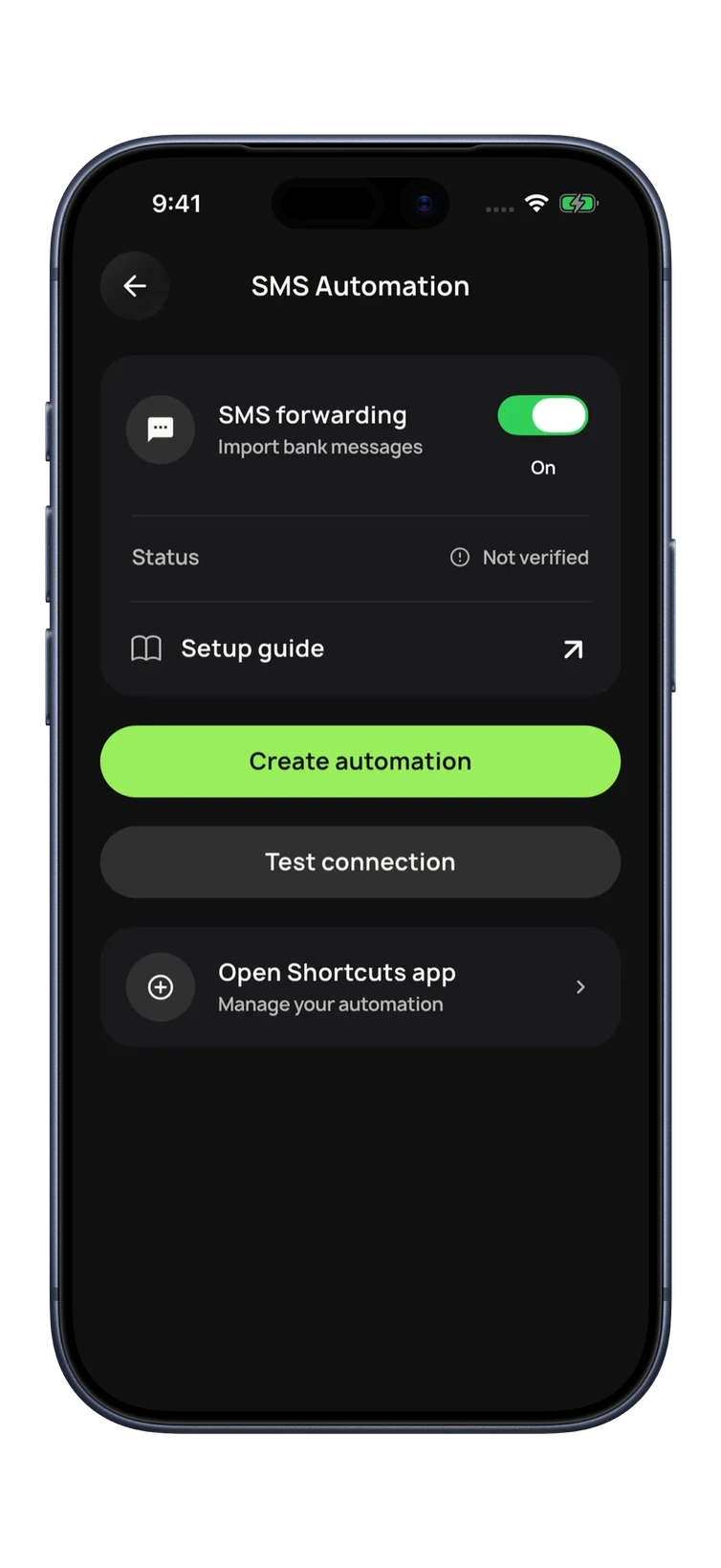
Wait for your next bank alert, or open the automation's detail in BudgetGo's Data Hub and tap Test connection. Then return to BudgetGo to review the imported transaction.
Troubleshooting
If a transaction doesn't show up.
I can't find the BudgetGo actions in Shortcuts
Open BudgetGo once after installing or updating so iOS registers its actions, then search Shortcuts again for "BudgetGo".
I got a "Transaction Import Failed" notification
The Wallet automation sent an empty amount or merchant. Re-open the automation and make sure both fields use Shortcut Input with Amount and Merchant selected.
The automation asks before it runs
Edit the automation in Shortcuts and switch it from Run After Confirmation to Run Immediately.
An SMS alert didn't create a transaction
Only supported financial messages produce transactions. Check that imports are on in Data Hub and that the Message field uses the message Content.
Still stuck? Email support@budgetgo.ai or use the support page.